1Panel 面板部署
Installing the 1Panel Control Panel
Installing the 1Panel Control Panel
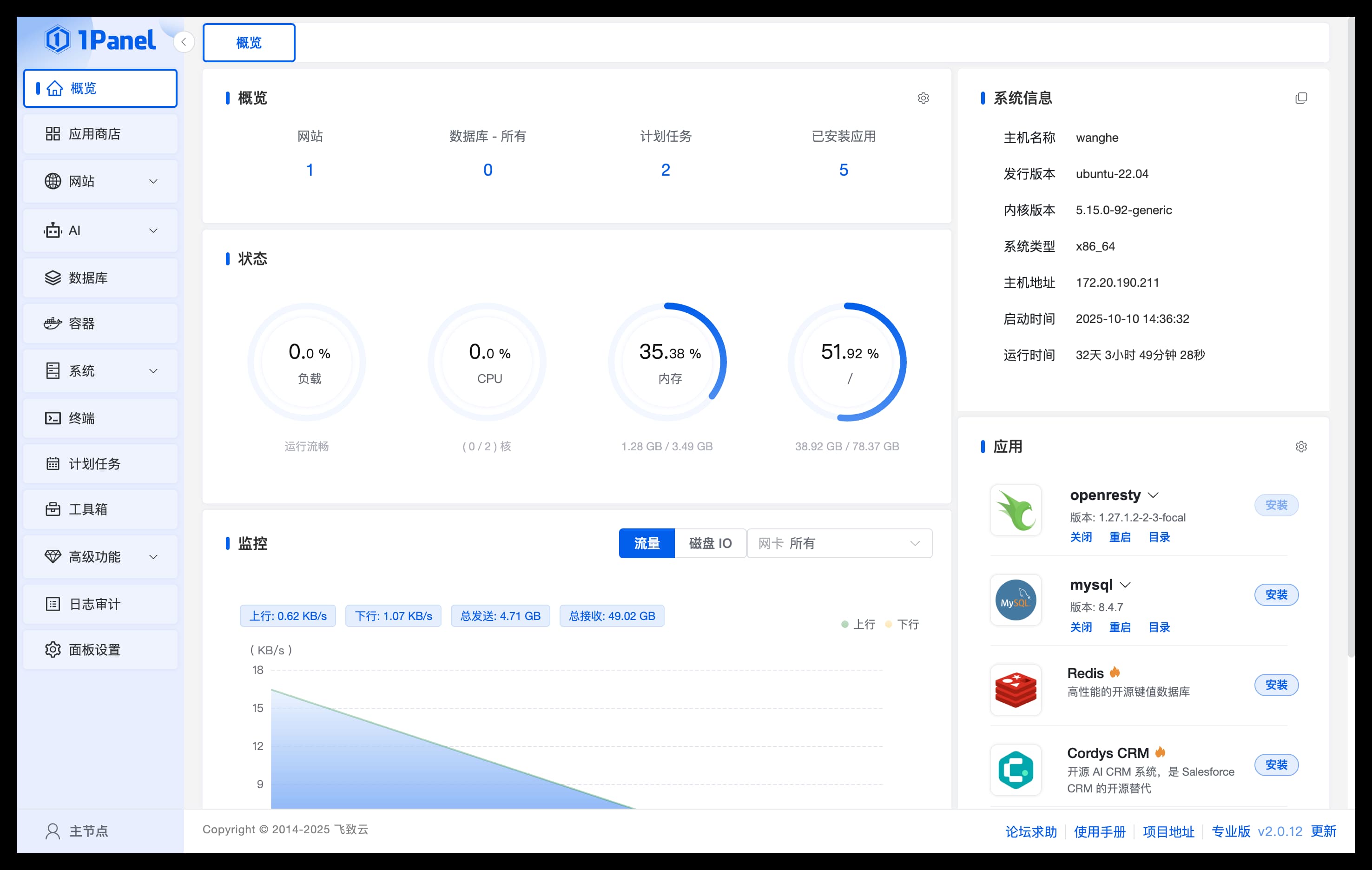
- For information on 1Panel installation, deployment, and basic features, please refer to the 1Panel Official Documentation
- After completing the 1Panel installation and deployment, open your browser using the provided URL to access the 1Panel control panel
Installing New API
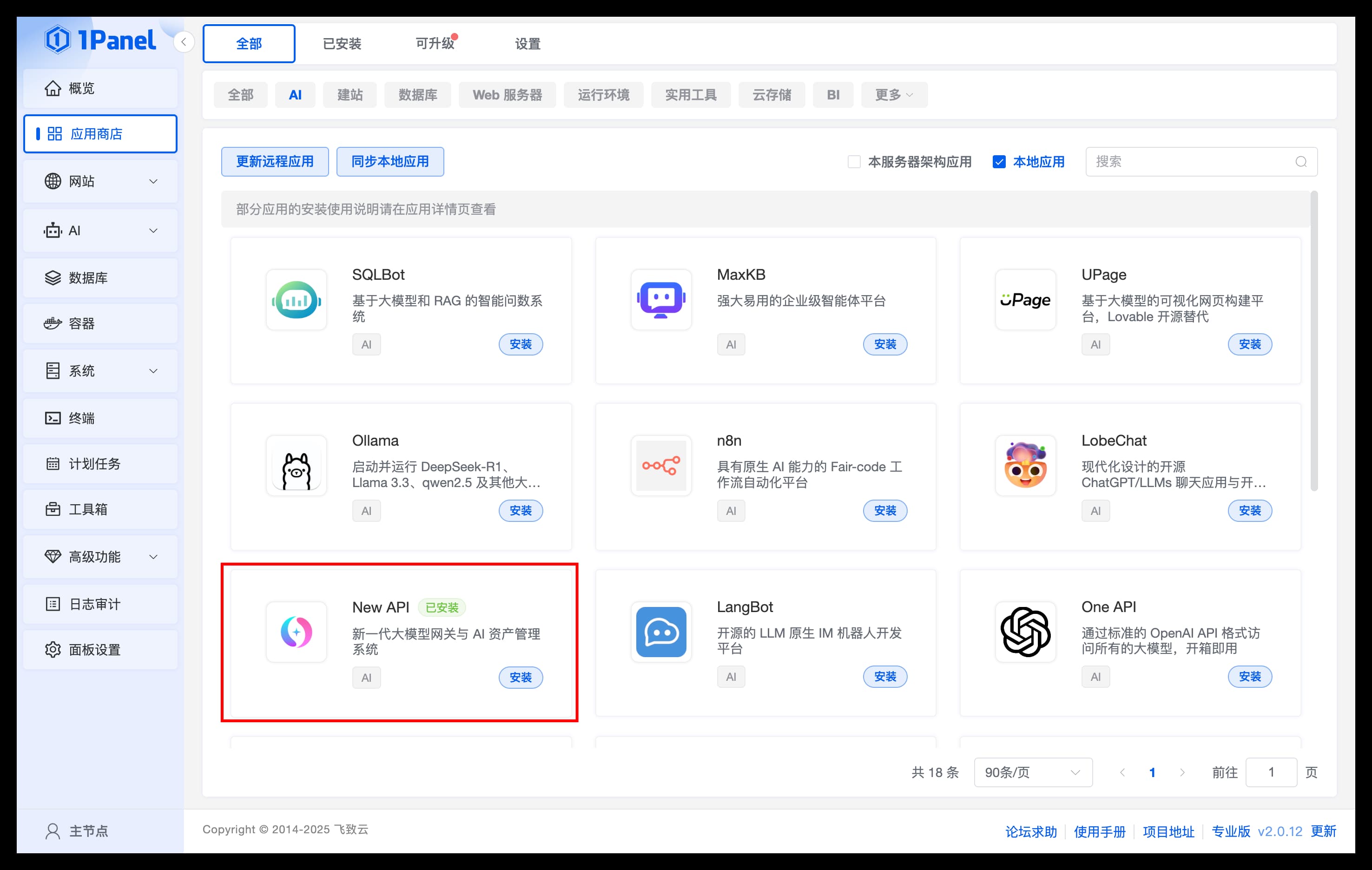
Searching for Applications
Go to the application list in the App Store, find the New API application under the [AI] category, and proceed with the installation.
Installing the Application
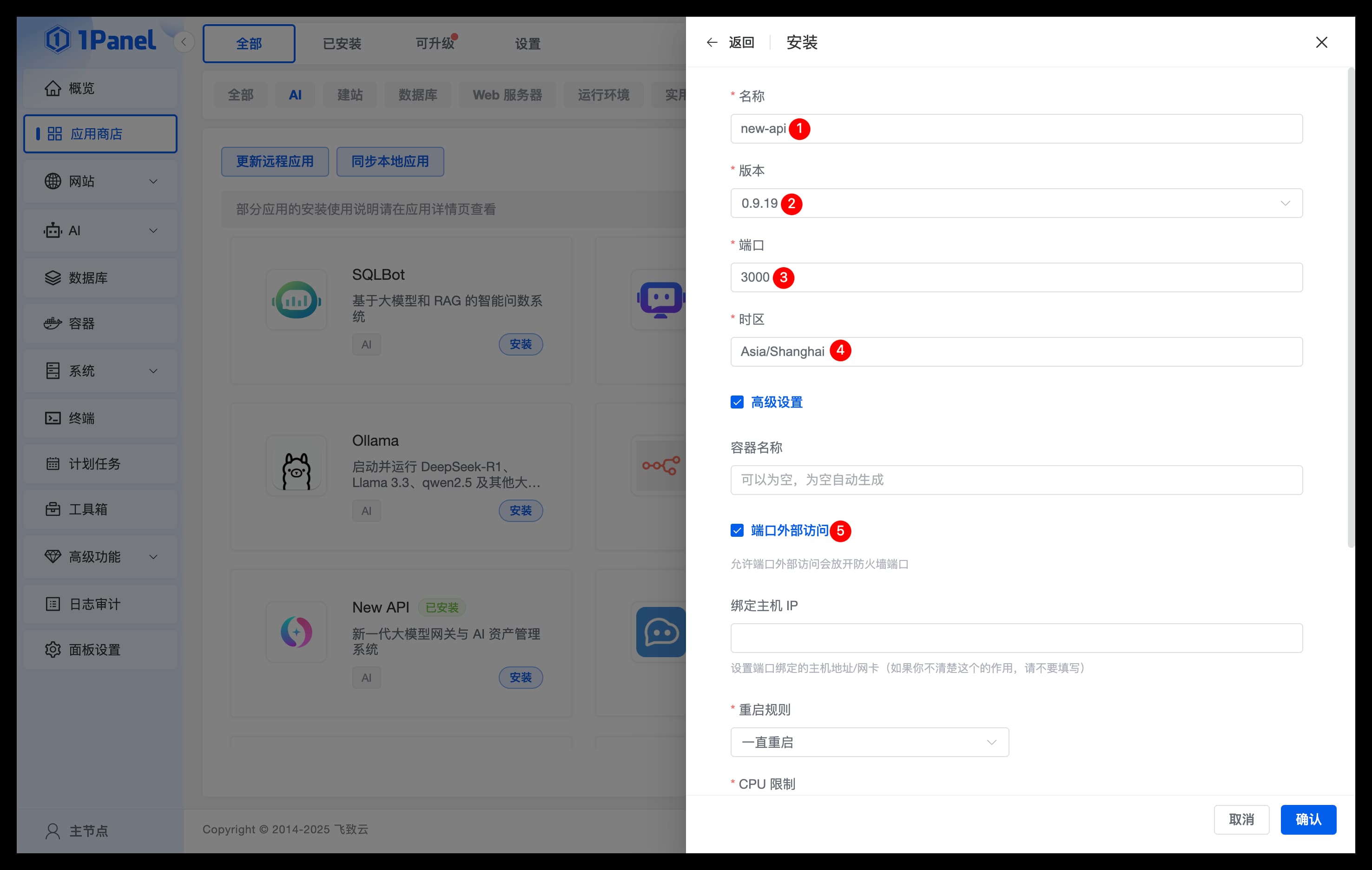
Configure the New API application parameters on the installation page:
- Name: The name of the New API application to be created
- Version: Select the version of New API
- Port: The service port for the New API application
- Time Zone: Enter the time zone where the server is located (Default Asia/Shanghai)
- Advanced Settings: Ensure that external access for the port is checked
Confirming Installation
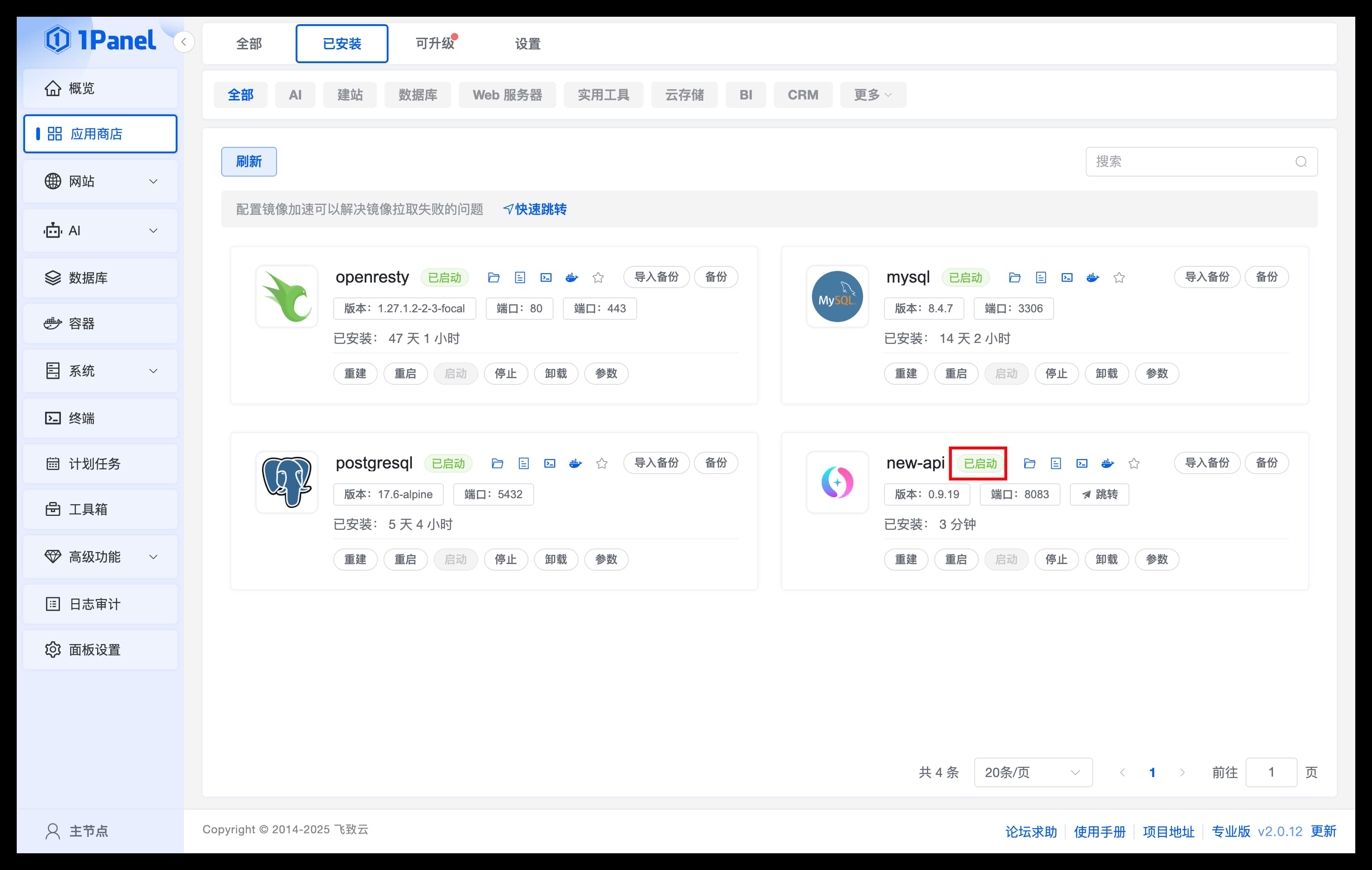
Click Confirm to start the installation. The page will automatically redirect to the list of installed applications. Wait for the New API application status to change to Started.
Accessing New API
Accessing the Application
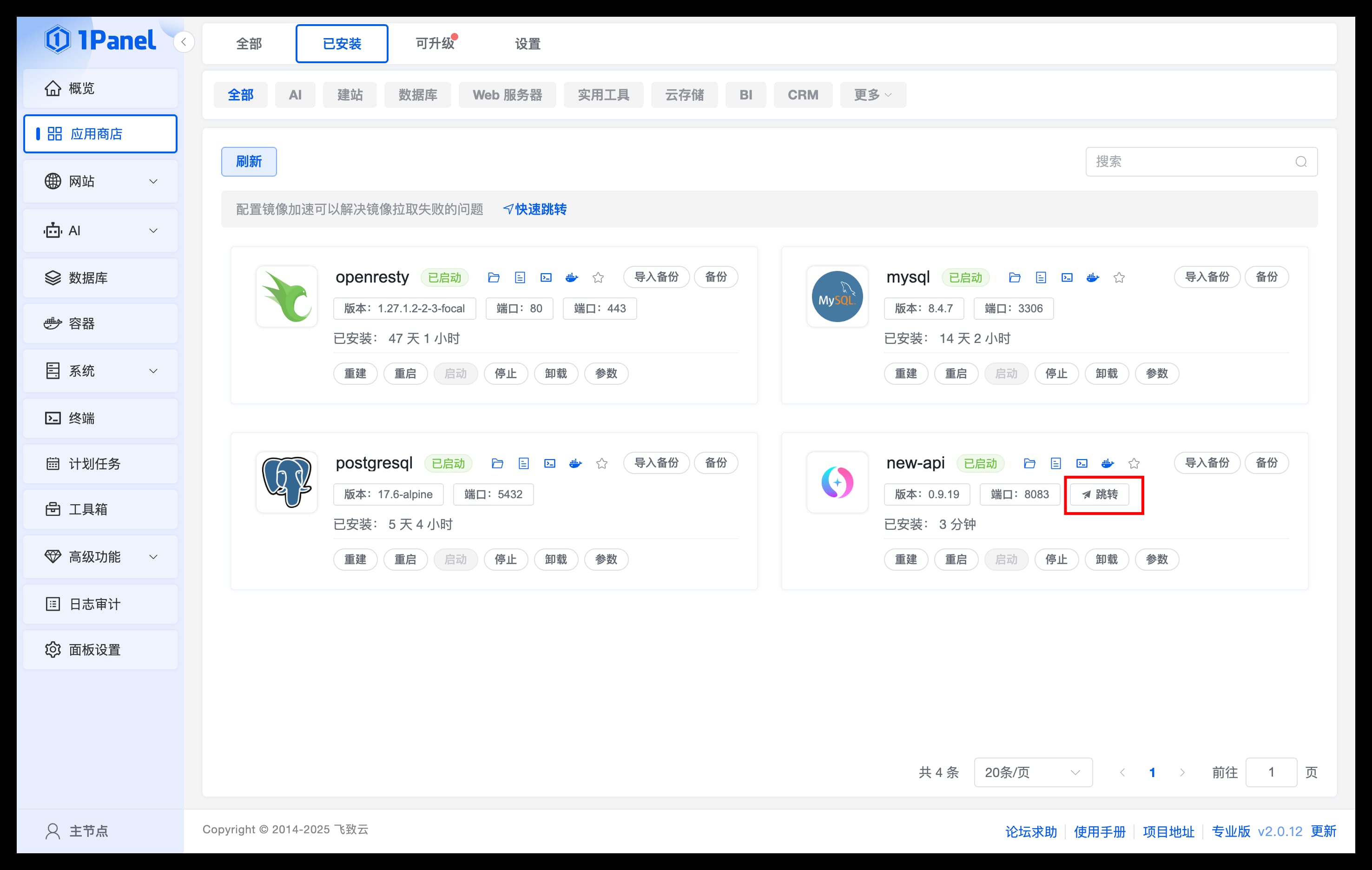
- On the
Installedpage, clickJumpto enter the New API WebUI page - Before use, it is recommended to set the
Default Access Addresson thePanel Settingspage